Dental Banner Ads for Google Display: A Worked Example
By AdflowKit · · 10 min read
A dental clinic Google Display banner needs a readable invitation, a clear next step and a layout that survives a small canvas. We built one creative in AdflowKit, edited the copy and exported four sizes. Here are the files, the exact brief and the mobile problem we caught before finishing.
- Selected formats
- 4 JPEGs
- Observed credit use
- 1 credit
- First generation request
- 13.8 seconds
The timing covers one browser request for the first creative, not briefing, editing or export. It is a single observation, not a speed guarantee.
The dental display banner pack
The final copy is deliberately short: “New patients”, “Plan your first visit.” and “Request a visit.” Click an image to inspect the JPEG. These are the exported files; the website serves lighter WebP previews.
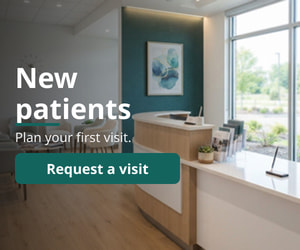 300 × 250 · medium rectangleA compact headline, supporting line and CTA.
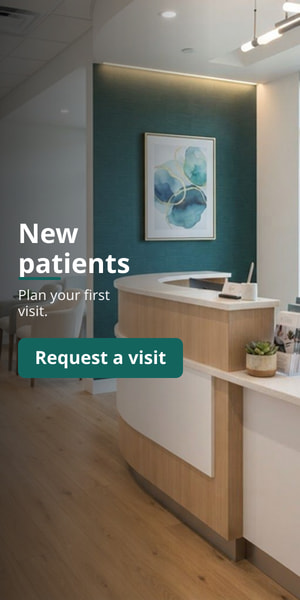 300 × 600 · half pageMore of the interior remains visible in the tall layout.
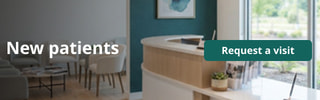 320 × 100 · mobile bannerThe short headline follows our review of the first export.
 728 × 90 · leaderboardA horizontal composition with the CTA on the right.
Some previews scale down on narrow screens. Open the original and inspect it at its native pixel dimensions before judging readability.
On this page
- The brief and exact prompt
- How we built it in AdflowKit
- Copy edits and the mobile fix
- Export checks and credit cost
- Dental offers, copy and landing pages
- Google Ads policy checks
- FAQ
A dental clinic banner brief for new-patient appointments
Our fictional practice wants to introduce its new-patient appointments in Austin. We chose an appointment request rather than a discount, a treatment promise or a same-day claim. A real practice would confirm availability, add its actual identity and direct visitors to an appropriate booking page.
- Subject: a bright reception interior, with no patients, dental procedures or treatment imagery.
- Visual direction: calm, professional, teal and white.
- Placement: four uploaded Google Display image sizes, with 300×250 as the master.
- Copy controls: an explicit headline, description and CTA, so we could inspect and edit the words separately.
The exact starting prompt
Fictional dental clinic demo for new patient appointments in Austin. Create a calm, professional Google Display banner with a bright, modern dental reception interior, no people or procedures. Teal #14645E and white, clear space for editable text. Headline: New patient appointments. Description: Plan your first visit. CTA: Request a visit. Do not invent prices, reviews, dentist credentials, treatment outcomes or same-day availability. This is an illustrative clinic, not a real business.
The prompt describes the intended message. We also used the separate copy fields: the first headline was “Your next dental visit”, the description was “Plan your first visit.” and the CTA was “Book now.” Those field values matter when reproducing the starting version.
Replace the illustrative details with your own business facts. Use a permission-cleared photo of the actual practice for a real campaign when the image could otherwise suggest that a generated interior is your clinic. The banner prompt guide explains how to make the visual brief more specific.
How we built the pack in AdflowKit
- Describe the clinic. We started from a text brief and left the optional website field empty. No real clinic URL or patient information went into the prompt.
- Configure the creative. We chose one variation, static JPEG delivery and the Google Display preset. We selected 300×250, 728×90, 300×600 and 320×100, with a teal accent and CTA color of
#14645e. We left the style at “clean, professional” and uploaded no logo. - Create one master. We clicked “Create design options” and used the resulting 300×250 creative. The observed generation request took 13.8 seconds.
- Edit the words. We changed the headline and CTA through the studio controls while retaining the background.
- Export and inspect. We checked all four JPEGs, found a clipped mobile headline, shortened it and refreshed the saved formats before downloading the final ZIP.
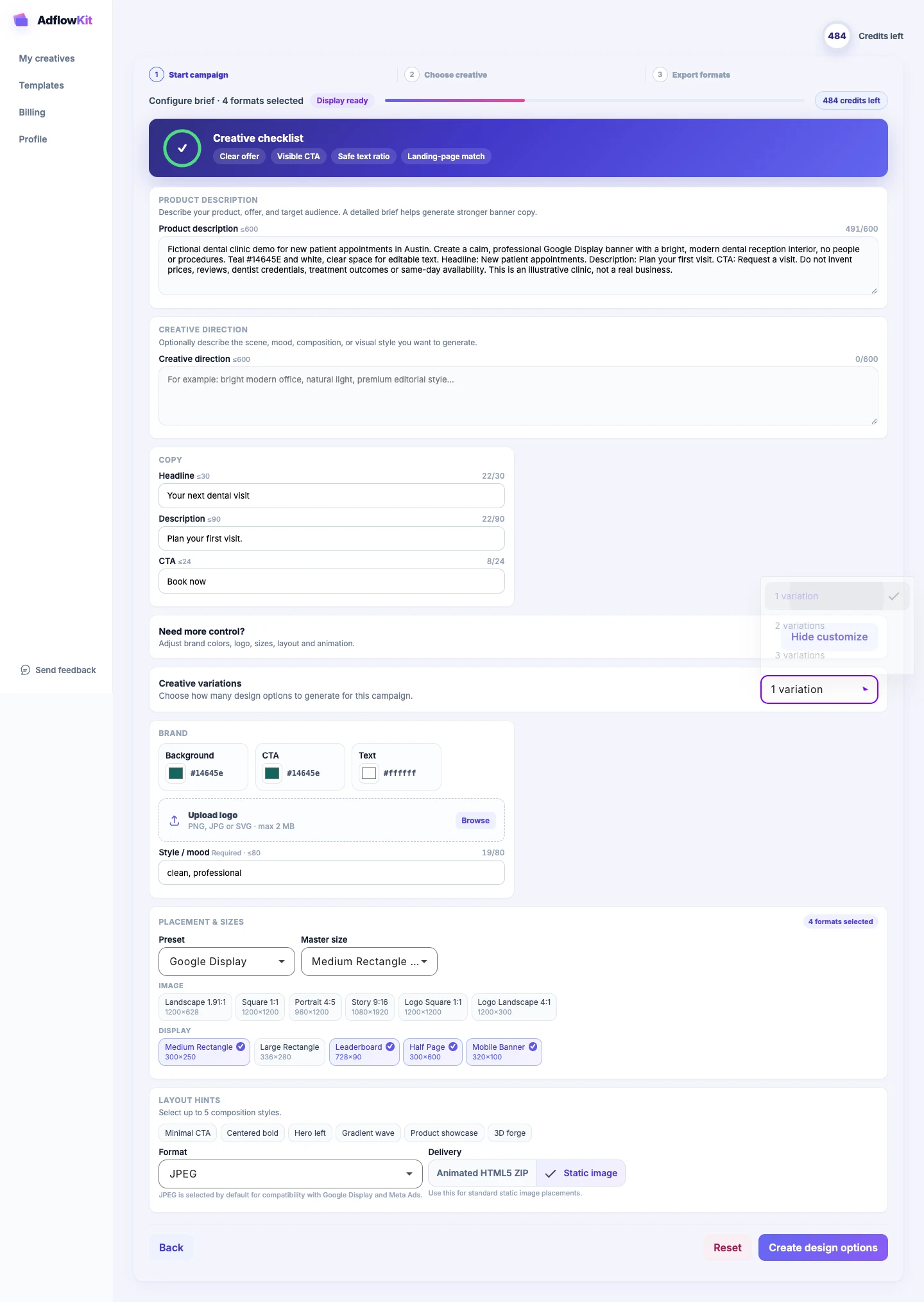 The actual brief screen before generation. One variation, four selected sizes, static JPEG delivery. Open the screenshot for the full form.
The copy edit, then the mobile fix
We first changed “Your next dental visit” to “New patient appointments” and “Book now” to “Request a visit.” The revised CTA better describes a request flow where staff still need to confirm an appointment. The studio confirmed that it reused the original background and used no generation credit.
The 320×100 export exposed a problem: the long headline did not fit, and the file only showed “New patient.” We shortened the final headline to “New patients” and checked the exported file again. A headline that fits the master can still fail in a mobile composition.
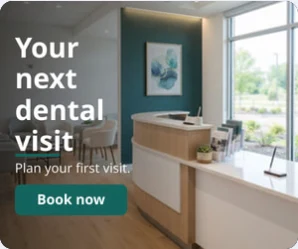 Before: “Your next dental visit” / “Book now.” Studio preview screenshot.
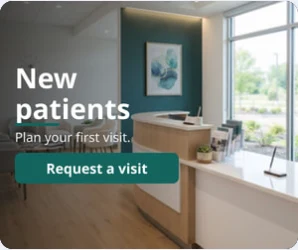 After: “New patients” / “Request a visit.” Same background, edited copy.
The export check that changed the final headline
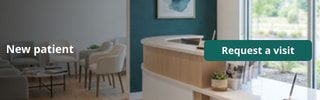 First export: the full “New patient appointments” headline did not survive the mobile layout.
Revised export: shorter copy for the small format. Check the original at 320×100.
After a copy edit, returning to export showed the earlier saved files. We used “Regenerate all formats” to refresh those sizes, then downloaded the new ZIP. This size-export action did not consume another credit in our run. Downloading a saved pack without refreshing it can leave you with the previous copy.
The demo does not yet contain a real practice name or logo. Before advertising, add those assets and review the layouts again, especially the small banner. Any further copy or branding change needs its own export check.
Dental banner sizes, export checks and credit cost
We inspected the downloaded JPEGs, not just the studio previews. The table records each file’s actual dimensions and byte count. Google’s uploaded Display ad specifications list GIF, JPG and PNG with a maximum of 150 KB. All four files fit that limit.
Final JPEG files exported on November 10, 2026| Format | Dimensions | File size | Review |
|---|
| Medium rectangle | 300 × 250 | 21,607 bytes (21.6 kB) | Under 150 KB; dimensions verified. |
| Leaderboard | 728 × 90 | 17,988 bytes (18.0 kB) | Under 150 KB; dimensions verified. |
| Half page | 300 × 600 | 36,217 bytes (36.2 kB) | Under 150 KB; dimensions verified. |
| Mobile banner | 320 × 100 | 11,094 bytes (11.1 kB) | Under 150 KB; dimensions verified. |
Observed credit use: 1. The account balance changed from 484 to 483 after the initial creative generation and remained at 483 after the text edits and refreshed size export. We generated one creative option. Additional AI creative options or background changes are separate operations.
For a pricing illustration, the current site lists 20 credits for $9.99: one credit works out to about $0.50. The 170-credit pack at $49.99 works out to about $0.29 per credit. Those are allocated pack prices, not a separate charge we paid for this demonstration. Check current pricing before purchasing.
Download the demo JPEG pack. Use the pack for reference and layout review when preparing your own clinic’s version.
Dental ad copy ideas for your booking page
For dental advertising, begin with what the practice can deliver. A general new-patient invitation needs a page that explains the first visit and gives a working request route. A treatment-specific ad needs the corresponding information on the destination. Keep the practice name, location, service and terms consistent.
For this demo, we kept the offer free of price and treatment claims. If you add a priced appointment, state what the price covers and disclose any relevant conditions on the destination. Have the practice approve the exact offer before creating the banner.
Editorial dental copy options; use only statements true for your practice| Goal | Headline idea | CTA | Destination needs |
|---|
| Introduce new-patient appointments | New patients | Request a visit | First-visit information and a working request form. |
| Explain the practice | Meet our dental team | Meet the team | Real names, qualifications and permission-cleared photos. |
| Describe routine care | Plan your dental checkup | See visit details | Accurate service details and appointment options. |
| Introduce a location | Visit our Austin clinic | Find our clinic | The real address, opening hours and directions. |
Avoid turning “Request a visit” into a promise of a confirmed slot if someone still has to call the patient back. Use an accurate confirmation message after form submission. For a small banner, shorten the headline before shrinking it to an unreadable size.
Check the creative, destination and targeting together
Our editorial recommendation is to describe the service and the next step in neutral language. Replace “Embarrassed by your teeth?” with a factual invitation such as “Explore our dental services.” Do not make a guaranteed treatment result or imply a diagnosis from the viewer’s appearance.
Google’s misrepresentation policy covers misleading business information, unreliable claims and unavailable offers. Check the banner and its destination together; a useful-looking file does not establish ad approval.
For targeting, Google treats health in personalized advertising as a sensitive category in the circumstances it describes, including invasive procedures and certain health conditions. When an offering falls into that category, Google restricts advertiser-curated audiences, including Customer Match and your data segments. Review the actual service, landing page and campaign settings rather than assuming every dental campaign has identical restrictions.
Also review Google’s imposing negativity policy for appearance-related messaging. Keep a routine visit invitation separate from pressure about a person’s appearance. These are creative review points; this page does not provide a jurisdiction-specific legal assessment.
Uploaded banners and responsive assets use different workflows
This pack contains finished uploaded Display banners. For a responsive display ad, you supply separate assets such as images, logos and headlines, and Google assembles the ad. Do not treat a finished 300×250 banner as a substitute for preparing that asset set. Performance Max assets are outside this example.
Before a real campaign
- Add the clinic’s real identity and permission-cleared imagery; do not present this generated reception as your premises.
- Read the original JPEGs at their actual dimensions. Check the complete headline and CTA in every selected format.
- Confirm that the downloaded pack contains the latest edits.
- Verify the destination on a phone: service details, location, request form and confirmation message.
- Review the current platform policies and the campaign’s targeting settings.
After launch, measure completed appointment requests and confirmed appointments separately. Compare later variants using your own campaign data; our creative A/B testing guide explains how to keep the comparison focused.
Dental display ad FAQ
What should a dentist display ad include?
Use your real clinic identity, one service or invitation and a clear next action. Keep the appointment information consistent with the destination. Our demo uses “New patients” and “Request a visit”; add your own clinic name and approved imagery before running a real ad.
Which Google Display banner sizes does this dental example use?
This pack contains 300×250, 728×90, 300×600 and 320×100 JPEG files. These are four selected sizes, not every Google Display size. Check the specifications and available placements for your campaign before exporting.
Can I upload a WebP dental banner to Google Display?
Google lists GIF, JPG and PNG for uploaded Display image ads, with a maximum file size of 150 KB. The WebP images on this page are website previews. Use the JPEG export when preparing this type of Google Ads upload.
Can I edit the headline without generating another background?
In this run we changed the headline and CTA in the AdflowKit editor while retaining the original background. Those text edits and the size exports used no additional generation credits. We refreshed the saved formats after the last edit so the downloaded files contained the latest copy.
Are these real dental advertising results?
These are actual AdflowKit exports from the demonstration described above. The page documents the creative workflow, copy edits and file checks. See the demo disclosure for the scope of the example.
Sources and how we made this demo
AdflowKit created this demo in its production banner builder on November 10, 2026. The clinic is fictional and the interior is AI-generated. We retained the background during copy edits, checked the final JPEGs and recorded the initial request duration with Browser Resource Timing. We did not launch a campaign or measure advertising results.
The production record contains the prompt, settings and export measurements. See the asset notes for download permissions and image details.
Policy sources checked November 10, 2026.