
HTML5 banner ads: how to create animated ads for Google Ads
An HTML5 banner ad is a small web creative packaged for an ad platform. You can animate its text, product image and call to action while keeping control of the layout. To run one in Google Ads, you need an eligible account, a compatible ZIP file and a creative that passes technical and policy checks.
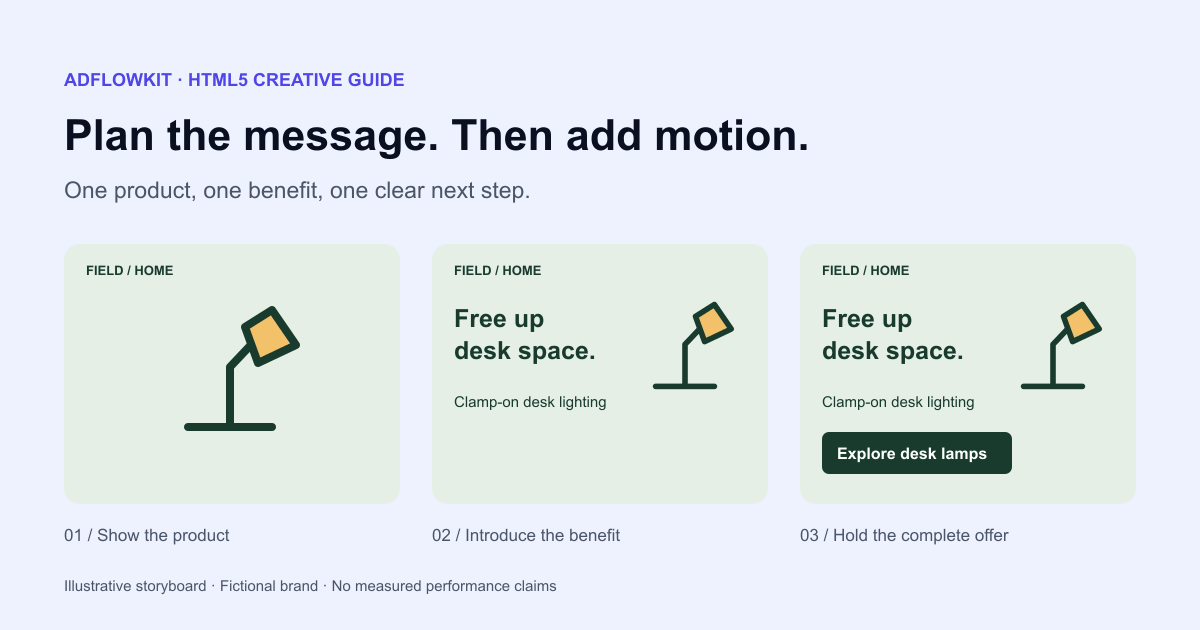
Imagine an ad for a desk lamp. You want to show the lamp, explain that it frees up desk space, then invite the reader to explore the collection. A short animation can introduce those elements in a readable order. The work starts with deciding what the reader needs to see, then choosing how to reveal it.
This guide walks through that process, from a first storyboard to an exported file and a campaign test. The examples use fictional offers and suggested timings. They illustrate design choices; they are not measured campaign winners.
Before you build
- Confirm HTML5 access in the Google Ads account that will run the campaign.
- Write one offer and make the final frame useful on its own.
- Check the exported ZIP, including its assets, destination and animation stop time.
- Compare business outcomes before deciding whether animation deserves more budget.
Contents
- What is an HTML5 banner ad?
- HTML5 vs. GIF vs. static and responsive display ads
- Google Ads HTML5 banner requirements
- HTML5 banner animation best practices
- HTML5 banner examples: live previews and five concepts
- Tools to create HTML5 banner ads
- How to create an HTML5 banner ad step by step
- HTML5 banner ZIP structure and file size
- Validate the file, then upload it to Google Ads
- Common HTML5 banner problems and what to inspect
- Test HTML5 against a static version
- HTML5 banner preflight checklist
- Frequently asked questions
What is an HTML5 banner ad?
An HTML5 banner uses HTML for structure, CSS for styling and motion, and sometimes JavaScript for behavior. Images, text and buttons can remain separate elements inside the creative. An ad platform loads that creative into an ad placement rather than sending the visitor to a normal webpage.
You typically deliver it as a ZIP containing a primary HTML document and the files it needs. A designer can produce that package through a visual editor, or a developer can build it by hand. The recipient needs the exported creative, not the editor project or a link to your preview.
HTML5 describes the technology. It does not promise that an ad is responsive, interactive, personalized or connected to a product feed. A fixed 300 × 250 banner with a simple text entrance is still an HTML5 ad. A dynamic product campaign adds data and platform configuration beyond that animation.
This distinction matters when briefing a designer. “Make it HTML5” describes a delivery format. You still need to specify the message, dimensions, destination, animation behavior and platform. Without those decisions, you can receive a beautiful preview that does not fit the campaign.
HTML5 vs. GIF vs. static and responsive display ads
| Format | What you prepare | When to consider it | Main review task |
|---|---|---|---|
| Static image | A finished JPG or PNG layout | A clear offer that fits in one frame | Readability, image quality and dimensions |
| Animated GIF | A sequence of raster frames | A simple visual change with limited detail | File weight, frame quality and loop behavior |
| HTML5 banner | A packaged web creative | Controlled motion and a precise composition | Package compatibility, timing and click behavior |
| Responsive display ad | Separate images, logos and text assets | Platform-assembled layouts across placements | Asset combinations and assembled previews |
In a GIF, the text forms part of the image frames. In an HTML5 layout, text can remain a separate element that you position and animate. That can help preserve clean lettering, although actual quality still depends on font choice, rendering and the space you give the copy.
A responsive display ad follows a different workflow: you supply ingredients and Google assembles combinations. Uploading a finished HTML5 ZIP does not create those separate assets. If you need both formats, prepare and inspect both sets of deliverables.
Choose a static banner when the viewer can understand the whole message at a glance. Consider HTML5 when a short sequence helps explain a product or establish a visual hierarchy. Motion adds review work, so give it a specific purpose. There is no universal conversion advantage to choosing one file format.
For visual directions before adding motion, explore our Google Display ad examples. Keep that design work focused on the offer; decide the movement after the layout makes sense.
Google Ads HTML5 banner requirements
Google restricts HTML5 access. Its published criteria list an account older than 90 days, more than US$9,000 in lifetime spend and a good policy history. The access-application section separately describes possible approval with more than US$1,000 in lifetime spend and good payment and policy histories. Neither route guarantees access. Check the receiving account before commissioning a full banner set. See Google’s restricted-format eligibility guidance.
If a client runs the ads, check their account rather than your agency’s account. Downloading an HTML5 creative from a design tool does not unlock Google’s upload permission. A new advertiser should resolve this question before spending time on animation.
| Item | Requirement |
|---|---|
| Delivery | ZIP containing HTML and supported assets |
| File-size limit | 600 KB or smaller |
| Declared dimensions | An ad.size meta tag in the HTML head, matching a supported size |
| Resources | Relative references to bundled assets; only specific documented external exceptions |
| HTML structure | DOCTYPE, html and body elements; explicit closing tags where required |
Google lists these in its uploaded display ads specifications. Check the live document at handoff, especially if you reuse a package created for another platform. The GIF rule of fewer than 5 frames per second is specific to GIFs; do not apply it as an HTML5 frame-rate rule.
Keep animation within 30 seconds, including repeats. A five-second sequence that loops forever exceeds that limit. Google’s image ad policy also applies to HTML5 ads. A short, finite sequence with a readable resting frame is a useful production default.
Use our Google Display banner sizes guide to choose dimensions. This article concentrates on animation and packaging rather than repeating the full size catalog.
HTML5 banner animation best practices
A person may notice your banner after its opening scene. They may glance away before the last transition. Design a sequence that still makes sense under those conditions. Keep the brand or product visible long enough for the viewer to connect the message to the advertiser.
Start with a still layout containing the product, one benefit and a call to action. If that frame needs three paragraphs of explanation, shorten the offer before animating it. Motion cannot fix a vague value proposition.
Write the offer before the animation notes
For the lamp campaign, “A clearer desk, a brighter workspace” leaves room for interpretation. “Clamp-on lighting that frees up desk space” tells the viewer what the product does. Pair it with “Explore desk lamps” if the destination is a collection page.
Check whether the destination supports that exact claim. A campaign that advertises a clamp-on lamp should lead to a relevant lamp or collection page. If the product requires a particular desk thickness, avoid presenting compatibility as universal.
Use a short sequence and a generous hold
For a suggested eight-second storyboard, show the product and brand from the start. Introduce the benefit during the first two seconds. Add the call to action by the third second, then hold the complete composition through the end. Allow enough time to read the complete offer.
Read the text aloud while watching the ad at its actual size. If you finish reading after the copy disappears, extend the hold or remove words. Check the ending as a still image: the reader should understand the offer without remembering an earlier frame.
Move one thing at a time
When the logo, headline, background and button move together, the viewer has to decide where to look. Give the main element a clear entrance, then let it rest. A small movement can establish order without turning the whole canvas into a moving surface.
Keep essential terms on screen with the offer they qualify. A discount and its important restriction should not appear in unrelated scenes. Avoid flashing, aggressive pulses and visual controls that imitate a system notification. Also preserve a visible brand and an honest destination.
HTML5 banner examples: live previews and five concepts
These concepts show how to write a motion brief. A visual editor may support a simpler entrance effect rather than the full custom sequence; confirm its capabilities before promising a particular storyboard.
Watch two exports from the AdflowKit HTML5 exporter
These 300 × 250 examples use the same exporter as the product, with drawn backgrounds and sample copy supplied for this guide. They show Fade up and Slide left, each set to five seconds with looping off. They demonstrate preset entrances rather than the custom multi-scene storyboards below.
Demo clicks are disabled in this article. The downloadable exports point to example.com; replace that destination before campaign use.
1. Product first: a desk lamp
Offer: “More desk space. Same bright ideas.” Start with the lamp already visible against a tidy desk. Fade in the headline, then reveal “Explore desk lamps.” Keep the product still while the text enters so the viewer can inspect its shape.
Adaptation: in a rectangle, place the product beside the copy. In a narrow strip, shorten the headline and keep the lamp in a compact crop. Avoid squeezing the full rectangle scene into the strip. This concept suits a product with a recognizable appearance and one easy-to-explain benefit.
2. One task: software for appointments
Offer: “Let clients book your available hours.” Show a simplified calendar with one open slot, introduce the benefit, then hold a “See how booking works” call to action. Use invented names and dates in the illustration.
Production note: a miniature recording of a whole dashboard often contains unreadable labels. A simplified visual can communicate the task with fewer details. If you show a product interface, keep the illustration faithful to the feature you sell and avoid suggesting unsupported behavior.
3. A seasonal offer: outdoor clothing
Offer: “20% off selected rain jackets.” Begin with a jacket image and brand, reveal the discount, then hold the relevant terms and “Shop the selection” together. Include the end date if the campaign requires it and the layout has room to keep it readable.
Production note: use a genuine offer and keep the landing page synchronized with it. A countdown requires a reliable implementation and a real deadline. A simple end date is easier to maintain than a timer that needs extra code and verification.
4. A service outcome: garden maintenance
Offer: “Get your garden ready for spring.” Show one representative garden scene, fade in the service area and reveal “Request a quote.” Keep location information visible on the final frame so people can judge relevance before clicking.
Production note: before-and-after transitions can imply a documented result. Use authentic images with permission when making that claim. If your imagery illustrates a service rather than a completed job, describe it accordingly and avoid invented customer testimonials.
5. A learning offer: a beginner workshop
Offer: “Learn the basics of product photography.” Introduce one product photo, add the workshop topic, then show “View workshop details.” If the date matters, include it in the final composition with the offer.
Production note: multiple examples can overwhelm a small banner. Choose one image that represents the lesson. Put the full curriculum on the landing page, where the reader has enough space and time to evaluate it.
Tools to create HTML5 banner ads
Choose the tool around the animation you need and who will maintain the files. A preset entrance and a custom animated scene require different amounts of authoring control.
| Tool | Useful for | Tradeoff |
|---|---|---|
| Google Web Designer | Visual HTML5 ad authoring and Google ad environments | Learn the authoring workflow and publish the final files, rather than uploading the editable project. |
| Adobe Animate | Custom timeline animation and HTML5 Canvas output | Review runtime dependencies and platform compatibility; Canvas output alone does not establish ad compliance. |
| Hand-coded HTML/CSS | A lightweight custom layout with explicit timing | You own cross-browser rendering, packaging and click integration. |
| AdflowKit | URL- or brief-based banners with preset entrances and HTML5 ZIP export | Less control than a custom timeline; review loop settings and each output size. |
Google explains its final-file workflow in Google Web Designer publishing documentation. Adobe documents HTML5 Canvas publishing in Animate; that page currently states Animate is in maintenance mode, with support and fixes but no planned new features.
How to create an HTML5 banner ad step by step
Step 1: Write a production brief
Record the destination, audience, offer, brand assets and dimensions in one place. Add the delivery platform and who will approve the final files. This reduces the chance that a designer prepares a package for a different ad environment.
Campaign: clamp-on desk lamps
Audience: people furnishing a compact home office
Destination: the desk-lamp collection page
Message: clamp-on lighting that frees up desk space
CTA: Explore desk lamps
Assets: approved logo and accurate product photo
Sizes: 300 × 250, 300 × 600, 728 × 90
Motion: restrained text entrance, then a readable hold
Ending: brand, product, benefit and CTA remain visible
Delivery: Google Ads HTML5 ZIP for each selected size
Review: account access, file weight, destination and stop time
Replace the example details with facts about your offer. If AI helps draft the copy or background, check product features and image accuracy yourself. Keep a record of the approved wording so later variants do not introduce a different promise.
Step 2: Build a complete still composition
Choose a legible headline, crop the product and place the logo. Review the banner at 100% scale. A desktop editor preview can make small text look easier to read than it will be in the placement.
Use contrast to separate the copy from the image. If the background contains several objects, move the text onto a quieter area or add a restrained overlay. Leave enough space around the call to action to recognize it without relying on movement.
Step 3: Select the HTML5 output and animation
In AdflowKit, start from a landing-page URL or a text brief, review the generated message and choose your formats. The editor provides an Animated HTML5 ZIP output and animation choices including Fade up, Slide left and CTA pulse. Preview the selected effect before export.
Choose the simplest effect that suits the message. Use a text entrance when you need a clear reading order. Use a restrained CTA emphasis only after the offer is understandable. Custom scene changes or interactive widgets may require another authoring workflow; do not assume that selecting HTML5 gives you a full animation timeline.
Try a preset HTML5 animation in AdflowKit, then review the exported layout and loop settings below.
Step 4: Check duration and disable indefinite looping
For a first Google Ads version, use a short sequence and turn off looping. In AdflowKit, review duration and loop controls in the animation settings. Looping is enabled by default in the current product settings. Switch it off before exporting for Google Ads: the exporter otherwise repeats the animation indefinitely.
Watch the exported creative for more than 30 seconds. Confirm that movement has stopped and that the final copy remains visible. A five-second duration can describe one cycle rather than the total running time. This distinction is easy to miss when reviewing only the first playback.
Make the message available without motion
In a custom-coded banner, use prefers-reduced-motion to show the complete still composition when the viewer requests less animation. Keep text contrast and a visible keyboard focus state, and use a real link for the destination. The starter below demonstrates the motion preference; the product-generated previews above do not add that behavior. Avoid making the offer depend on hover or a moving target.
Step 5: Recompose each size
A tall banner can carry a larger product image and a supporting line. A leaderboard has little vertical space. Keep the same offer across the set, but change the arrangement and remove secondary copy where necessary.
Review entrances separately for each size. A slide that looks subtle in a wide format can push the headline out of a narrow canvas. Inspect the start, middle and final frame for clipping. Check the logo after repositioning it, especially when the product crop changes.
Step 6: Export and name the deliverables
Download the HTML5 ZIP for the creative you approved. Use filenames that tell your media buyer the campaign, size and version, such as desk-lamp-300x250-v1.zip. If you download a collection of ZIPs, identify the individual creative packages before uploading; an outer archive of deliverables is not necessarily an uploadable ad.
Keep an approved static version alongside the HTML5 set. It gives you a comparison creative and a useful alternative if the receiving account lacks HTML5 access. Export it through the appropriate image workflow rather than taking a screenshot of a partly animated scene.
HTML5 banner ZIP structure and file size
A small package might contain a primary document, a stylesheet and a product image. Some exporters embed styles or scripts inside the HTML instead. Folder names vary; the important question is whether the primary document can find the files it references.
desk-lamp-300x250.zip
  index.html
  styles.css
  assets/
    lamp.jpg
    logo.png
This directory tree illustrates a package, not a complete upload-ready template. A file called index.html is a convenient convention, but the name alone does not establish compatibility. Inspect the document, declared dimensions and resource references.
The size declaration for a 300 × 250 creative belongs in the document head:
<meta name="ad.size" content="width=300,height=250">
Keep the declared dimensions consistent with the canvas. Resizing only the meta tag will not rebuild the layout. A different size needs its own reviewed composition and a matching export.
Keep dependencies small. A banner rarely needs a general website framework, analytics scripts or a large library for a text entrance. When reducing file weight, inspect large images first. Resize a background to the required use, compare compression settings and inspect edges and gradients after optimization.
HTML5 banner clickTag: Google Ads and AdflowKit exports
For a standard uploaded Google Ads HTML5 banner, use one destination and enter the final URL in the upload workflow. Google’s upload troubleshooting guide says multiple exits are unsupported and tells advertisers to remove Tap Area components and ExitAPI scripts that modify clickability. A decorative CTA can remain in the design; the whole ad can be clickable.
When a destination is supplied, AdflowKit exports a full-canvas anchor with that URL, target="_blank" and rel="noopener". It also writes this script:
var clickTag = "https://example.com/";
document.getElementById('ad').href = window.clickTag || clickTag;
The script sets the anchor’s destination. It does not send a tracking request, grant format access or guarantee platform approval. In a classic top-level browser script, var clickTag also creates window.clickTag, so this expression is not evidence of a separate tracking system or a preserved pre-existing override. Keep the exported URL and the campaign’s final URL consistent.
Other Google advertising products have different trafficking rules. Display & Video 360 requires click tags; Google Ad Manager also documents click-tag detection and URL editing. Use the instructions for your receiving platform rather than copying handlers between environments.
A minimal HTML5 banner code template
This self-contained 300 × 250 starter uses one five-second CSS animation, a visible final frame and a reduced-motion alternative. It has no external assets or libraries. Save it as index.html, replace the example destination and copy, then ZIP the file itself. Validate the adapted package before upload; this starter has not received Google campaign approval.
<!DOCTYPE html>
<html lang="en">
<head>
<meta charset="utf-8">
<meta name="ad.size" content="width=300,height=250">
<title>Desk lamp banner</title>
<style>
* { box-sizing: border-box; }
html, body { margin: 0; width: 300px; height: 250px; }
#ad { display: block; width: 300px; height: 250px;
  overflow: hidden; padding: 22px; background: #e5efe5;
  color: #183b2e; font: 16px Arial, sans-serif;
  text-decoration: none; border: 1px solid #183b2e; }
.brand { font-size: 12px; font-weight: bold; }
.message { animation: enter 5s ease both;
  animation-iteration-count: 1; }
h1 { margin: 22px 0 10px; font-size: 30px; line-height: 1.1; }
p { margin: 0 0 18px; }
.cta { display: inline-block; padding: 9px 14px;
  background: #183b2e; color: white; border-radius: 5px; }
@keyframes enter {
  0%, 10% { opacity: 0; transform: translateY(12px); }
  30%, 100% { opacity: 1; transform: translateY(0); }
}
@media (prefers-reduced-motion: reduce) {
  .message { animation: none; }
}
</style>
</head>
<body>
<a id="ad" href="https://example.com/" target="_blank" rel="noopener">
  <span class="brand">FIELD / HOME</span>
  <div class="message">
    <h1>Free up desk space.</h1>
    <p>Clamp-on desk lighting</p>
    <span class="cta">Explore lamps</span>
  </div>
</a>
<script>
var clickTag = "https://example.com/";
document.getElementById('ad').href = window.clickTag || clickTag;
</script>
</body>
</html>
Download the HTML5 banner starter ZIP. For a static backup, export a matching JPG or PNG separately. The reduced-motion CSS in the template only changes how this template renders; it does not create a backup image or describe a feature of the AdflowKit exporter.
HTML5 banner file size across platforms
| Platform or guideline | Published limit or approach |
|---|---|
| Google Ads | 600 KB HTML5 upload limit; inspect the complete bundle and included assets. |
| Display & Video 360 | 5 MB total creative files downloaded at serving; publishers may require less. |
| IAB New Ad Portfolio | Unit-specific initial-load, subload and static-image guidance, rather than one universal 150 KB limit. |
| Direct publisher placement | Obtain the publisher’s current creative specification and delivery requirements. |
Use the DV360 requirements and IAB New Ad Portfolio as the relevant references. Do not treat an IAB recommendation as proof that a specific ad network will accept the file. Ask which measurement the recipient applies before optimizing.
Validate the file, then upload it to Google Ads
Begin with the downloaded package, rather than relying only on the editor preview. Extract it into a temporary folder and inspect its contents. Preview through a suitable local web server if your browser blocks behavior from a local file. A successful local preview proves only that it renders in that environment.
Google links an HTML5 validator from its uploaded-ad troubleshooting guide. Use the available validation workflow and resolve reported issues. Validation does not grant account access or guarantee policy approval.
In the eligible Google Ads account, open the intended Display campaign and ad group, choose the workflow for uploading display ads and select the individual creative ZIP. Review the final URL and available previews before saving. Interface wording can change, so follow the account’s current upload controls.
Separate three checkpoints: the platform accepts the file, the ad passes review, and the campaign serves impressions. After approval, inspect delivery and any campaign restrictions. If the ad does not serve, investigate campaign settings as well as the creative. Re-exporting a working ZIP will not resolve every delivery issue.
Common HTML5 banner problems and what to inspect
| Problem | Next check |
|---|---|
| Account cannot use HTML5 | Resolve format access with the receiving account owner. |
| Package too large | Inspect included assets, image dimensions and unused files. |
| Missing primary document | Inspect the HTML file and its size declaration. |
| Asset missing | Compare referenced paths with packaged filenames. |
| Unsupported file | Remove unrelated editor files and check supported extensions. |
| Multiple exits | Inspect competing click targets and platform export settings. |
| Animation never stops | Inspect iteration settings and total runtime. |
| Headline disappears | Inspect clipping, transition states and final-frame styling. |
When a package fails, change one suspected cause at a time and keep the previous version. If you compress images, rename files and rewrite click handling together, you lose the ability to identify the fix. Record the error message with the filename and export settings.
When a banner looks wrong only after export, compare the same size in the editor and the extracted package. Check whether the font, asset or animation differs. Send the smallest reproducible example to the tool provider if you need help, without including private customer data.
For broader image, offer and destination policy issues, use our Google Ads disapproved banners guide. Keep technical package troubleshooting separate from changing the advertised claim.
Test HTML5 against a static version
Start with one question: does motion help this audience respond to this offer? Build a static control from the complete final layout. Keep the headline, product, CTA and destination as consistent as possible. If you change the discount and the animation together, you cannot attribute a difference to motion alone.
Choose your primary business metric before launch. For lead generation, consider cost per qualified lead rather than raw clicks. For a shop, examine purchase outcomes in the context of the campaign goal. Click-through rate can help diagnose attention, but an increase does not establish better customer acquisition.
Keep a record of dates, creative versions, placements and relevant campaign changes. Automated delivery can allocate impressions unevenly, so a side-by-side report is not automatically a randomized experiment. Use the most controlled comparison your setup supports and report limitations when the sample is small.
If you receive too few conversions to decide, preserve the uncertainty. Review the creative for readability and continue gathering relevant evidence if the campaign justifies it. Avoid declaring a winner from a handful of clicks. Our A/B testing guide covers planning and interpreting creative tests in more detail.
HTML5 banner preflight checklist
- The receiving account can upload HTML5 ads.
- The offer and destination match, including important conditions.
- The product image and claims reflect what you sell.
- Each size has a readable layout at actual display scale.
- The final frame includes the brand, offer and next step.
- Automatic animation stops within the platform limit, including repeats.
- The exported ZIP contains the primary document and referenced assets.
- The size declaration matches the creative dimensions.
- The package meets the current file-size and resource requirements.
- The click behavior matches the platform’s requirements.
- You reviewed the downloaded creative and the upload preview.
- You saved a static control and recorded the approved version.
Frequently asked questions
Can I create an HTML5 banner without coding?
Yes. A visual editor can generate the package. AdflowKit supports animated HTML5 ZIP export with preset effects. You still need to check the offer, account access, animation behavior and exported file before using it in a campaign.
Is an HTML5 banner the same as a video ad?
No. An HTML5 creative renders web elements inside an ad placement. A video ad uses an encoded video asset and its own campaign and format requirements. A screen recording of an HTML5 banner creates a different deliverable.
Can I upload HTML5 ads from a new Google Ads account?
Do not assume access. Google restricts the format and publishes eligibility and application criteria. Check the account first. If HTML5 is unavailable, consider the supported static or responsive formats for your campaign.
Does a five-second looping banner meet the animation limit?
Only if the total playback, including repeats, stops within the permitted time. A five-second loop that repeats indefinitely does not. Disable indefinite looping and inspect the exported creative long enough to verify the ending.
Can I use one ZIP for all banner sizes?
For the fixed-size workflow in this guide, prepare and review a separate creative package for each size. A multi-size download may contain several packages. Inspect the archive contents and upload the appropriate individual creative.
Can I upload the same ZIP to Meta?
Do not treat a Google Ads HTML5 export as a Meta image or video asset. Prepare the format required by the Meta placement. You can reuse the offer and brand elements, then adapt the composition and export.
Are HTML5 ads better than static banners?
They give you more control over motion, with additional production and validation work. Whether that helps your campaign depends on the message, audience, placement and execution. Compare outcomes with a suitable static version instead of assuming an improvement.
Does passing validation guarantee approval?
No. A validator checks technical aspects within its scope. Google also considers account eligibility, advertising policies and the destination. Continue through the receiving platform’s review process and check delivery after approval.
Requirements checked October 25, 2026 against the linked Google documentation. Platform rules and account interfaces can change.